Connecting Your EHR
Scope can connect directly to your EHR or practice management system. Once connected, your schedule can appear in Scope automatically and finished notes can be filed straight to the patient's chart — no copy & paste.
Where to Find EHR Integrations
EHR connections belong to your workspace, so they live in the Organization tab of Settings — including for your personal workspace:
- In Scope, click the Settings icon in the left sidebar.
- Select the Organization tab at the top of the Settings page.
- Select EHR integrations in the Settings navigation.
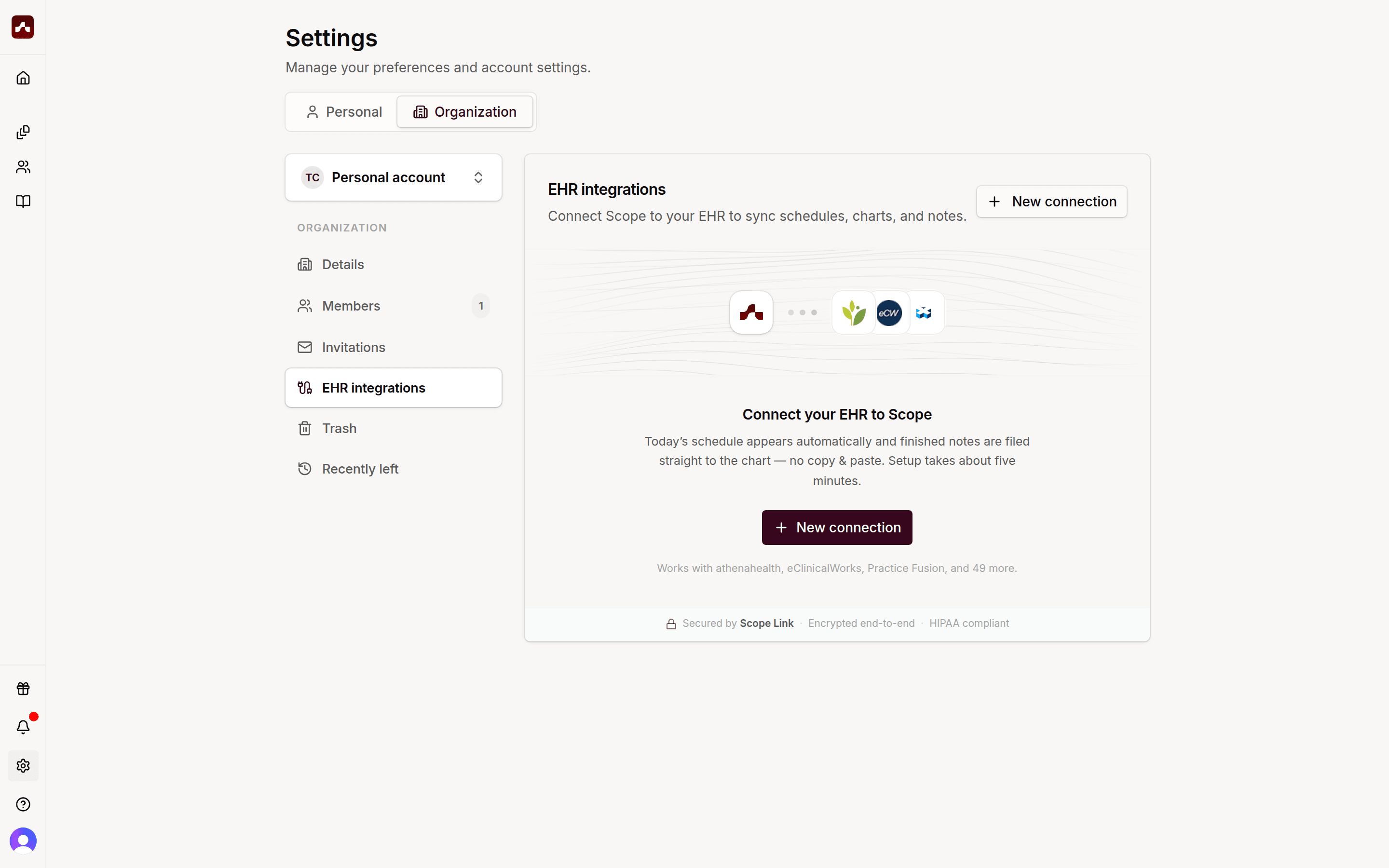 The EHR integrations section under the Organization tab in Settings, before any connection is set up
The connection is shared with everyone in the workspace. In your personal workspace, that's just you; in a team organization, the whole practice uses the same connection, and only organization admins can add or change it.
How to Connect
- Click New connection.
- Search for your EHR by name, or pick it from the list. Scope connects to 52+ EHR and practice management systems, including athenahealth, eClinicalWorks, Practice Fusion, Tebra, AdvancedMD, and Epic.
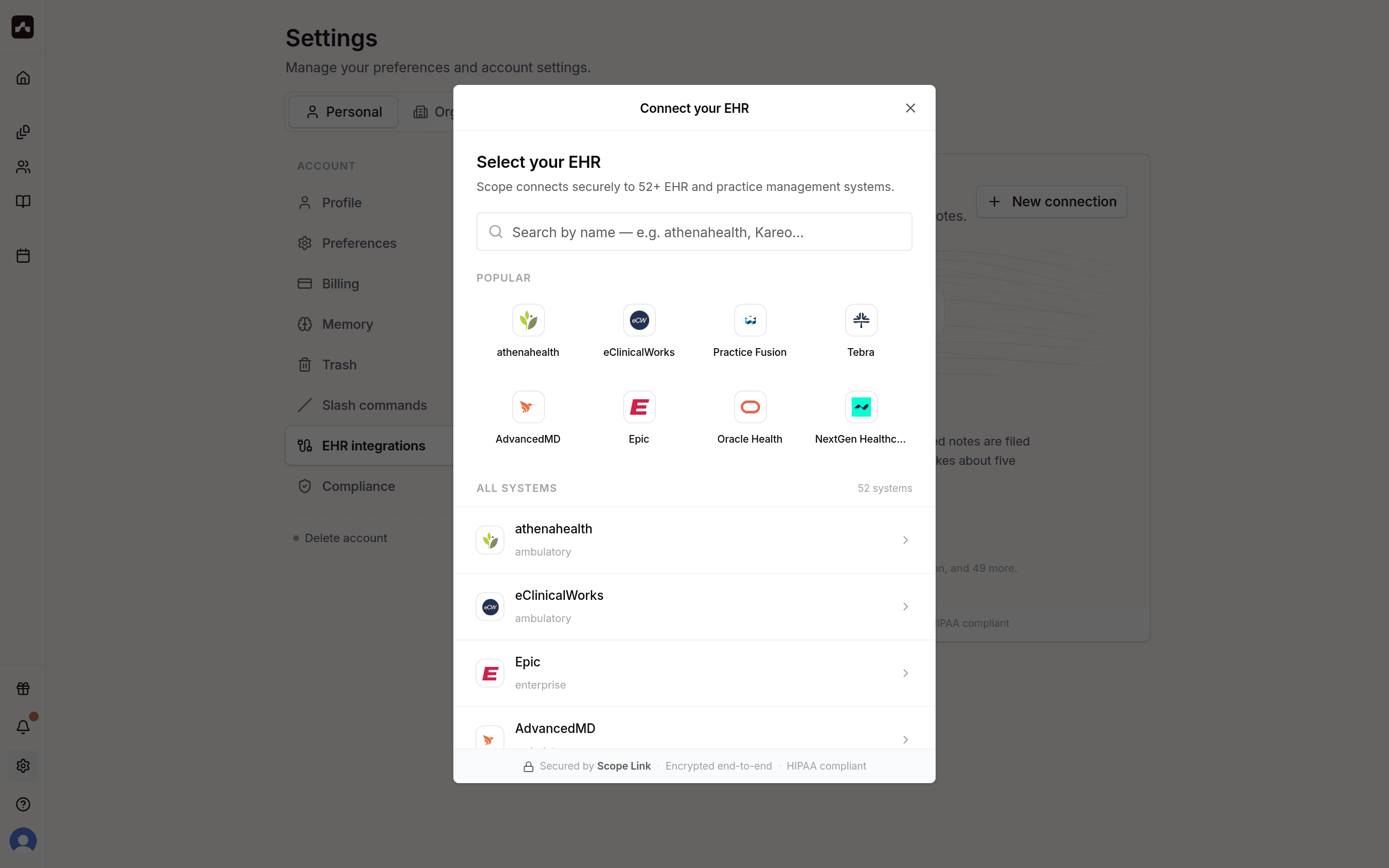 Search for your EHR or choose it from the popular list
- Follow the guided steps for your EHR. Depending on the system, Scope may ask a couple of quick questions about your setup, walk you through any preparation steps, and then ask for your connection details.
- Review what Scope is allowed to do in your EHR and click Allow to consent.
Your details are encrypted end-to-end and are never visible to Scope staff.
After You Connect
Right after setup, you'll see a You're connected confirmation — your details are saved and encrypted. The Scope team then reaches out with follow-up instructions to finish enabling sync features for your account, so keep an eye on your email.
Click a connection in the list to manage it:
- Sync settings — control how Scope files notes, including billing-code suggestions and how filled note sections are handled
- Update connection details — re-enter your credentials if they changed
- Make default — if you have several connections, choose which one Scope uses
- Disconnect — stop syncing at any time; notes already filed in the chart are not affected
Troubleshooting
- I don't see my EHR in the list. Choose My EHR isn't listed at the bottom of the list — Scope can connect to any web-based system. You can also contact support@scopehealth.com and we'll help you get set up.
- The connection shows "Needs attention". Open the connection and use Update connection details to re-enter your credentials.
- I can't add an organization connection. Only organization admins can manage the organization's EHR connection — ask an admin of your organization.