Using the Scope Browser Extension
The Scope Health browser extension lets you work seamlessly between Scope and your EHR. You can push completed notes directly into the appropriate fields and sync your patient schedule—all without leaving your EHR workflow. The extension works on both Chrome and Edge.
Watch the Overview
Installing the Extension
- Open the Scope Health extension page in the Chrome Web Store
- Click Add to Chrome (or Add to Edge) to install the extension
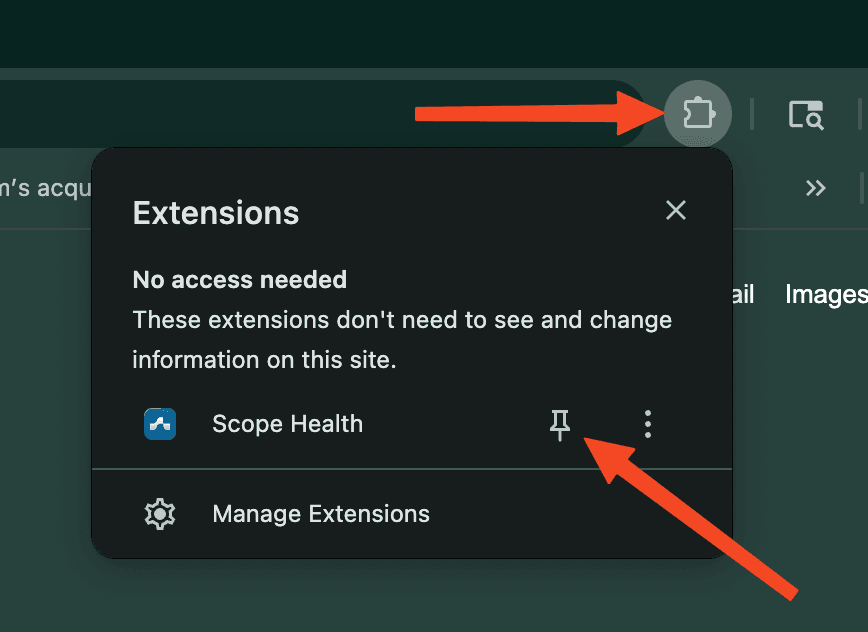
- Pin the extension to your toolbar by clicking the puzzle piece icon and selecting the pin next to Scope Health
Pushing Notes to Your EHR
The Push to EHR feature automatically fills in note content from Scope into the corresponding fields in your EHR. This eliminates copy-pasting and ensures your documentation lands in the right place.
How to Push a Note to Your EHR
- Navigate to the patient chart in your EHR where you want the note to be pushed
- Click the Scope Health icon in your browser toolbar to open the extension
- You'll see your list of visits in the extension
- Select the corresponding visit you want to push
- Click Push to EHR
- Scope will scan the EHR page for editable fields, match your note sections (Subjective, Objective, Assessment, Plan, etc.) to the appropriate fields, and automatically fill in the content
- Review the results and make any final adjustments in your EHR
Syncing Your Schedule
The Sync Schedule feature pulls patient appointments from your EHR directly into Scope, saving you time and reducing manual data entry.
How to Sync Your Schedule
- Navigate to your schedule or appointments page in your EHR
- Click the Scope Health icon in your browser toolbar to open the extension
- Go to the Sync Schedule tab at the bottom of the extension
- Click the Sync schedule button
- Scope will scan the page and display all detected appointments
- For each appointment, you can edit the patient name by clicking the pencil icon, or edit the visit date if the detected date needs correction
- Scope will automatically try to match patients from your EHR to existing patients in Scope—if a match is found, the patient will be pre-selected
- Uncheck any appointments you don't want to sync
- Click Sync to import the selected appointments as visits in Scope
Tips for Schedule Sync
- Make sure you're on a page that displays your appointment list (daily schedule, calendar view, or patient list)
- If no appointments are detected, try navigating to a different view in your EHR that shows more appointment details
- If a patient isn't auto-matched, you can manually select or create a new patient before syncing
- Already-existing visits are automatically skipped to avoid duplicates
If your EHR isn't working as expected, contact support@scopehealth.com and we'll work to add compatibility.
Troubleshooting
Extension Not Appearing
- Make sure you're signed in to Scope Health at app.scopehealth.com
- Try refreshing the page and clicking the extension icon again
- Check that the extension has permission to run on the current site
For additional help, contact support@scopehealth.com.