Managing Members & Roles
Organization admins manage the team from Settings → Organization. On desktop, open Settings and select the Organization tab. On mobile, tap the gear icon on the Home screen and use the Organization sections. The Organization settings always show the workspace you're currently in — use the workspace switcher at the top of the Settings navigation to pick the right organization.
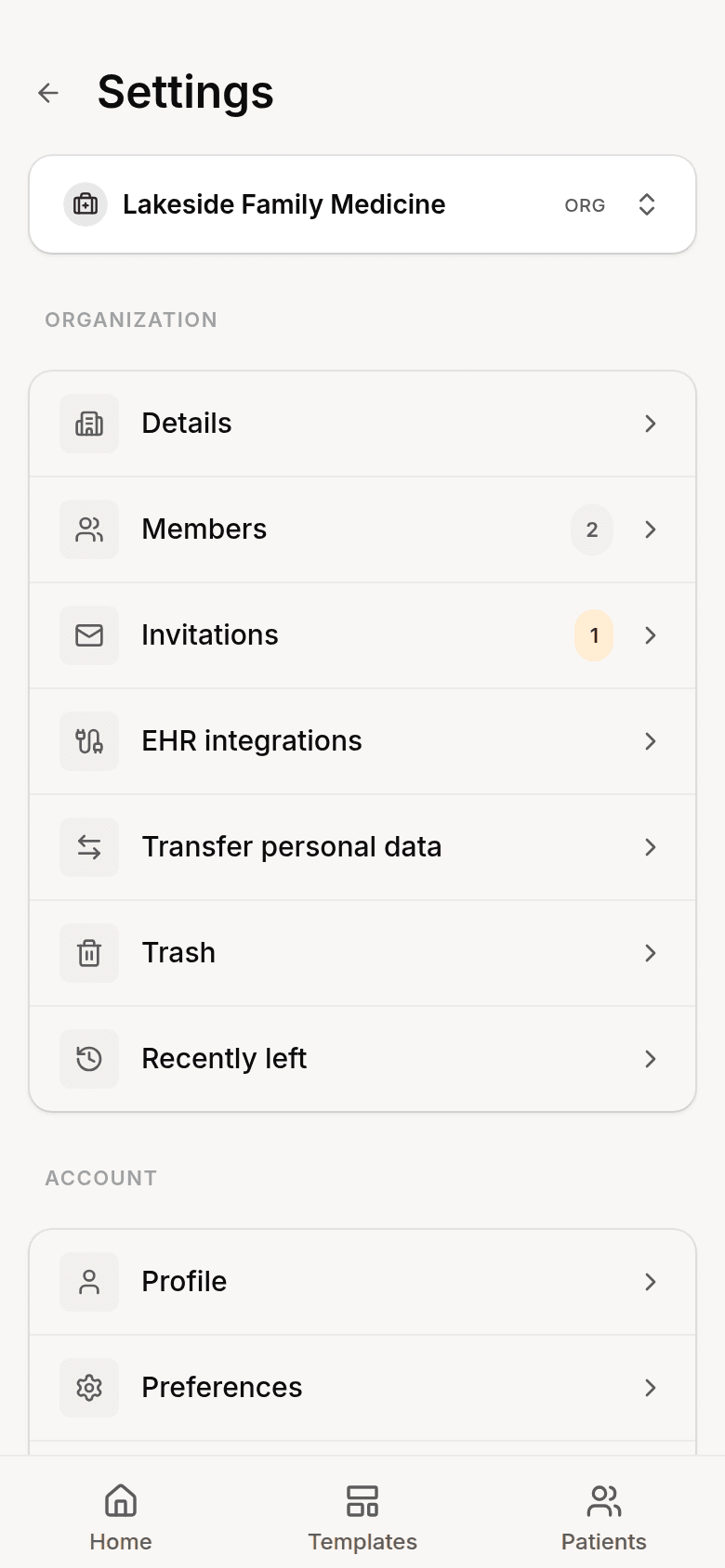 Organization settings on mobile: Details, Members, Invitations, and more
Roles
| Role | What they can do | |------|------------------| | Owner | The person who created the organization. Has admin abilities and can't be removed or demoted. | | Admin | Invite and manage members, revoke invitations, edit organization details, transfer content from departed members, and delete the organization. | | Member | Work in the organization workspace and use shared templates. |
Viewing and Managing Members
Open Settings → Organization → Members to see everyone in your organization, along with their role.
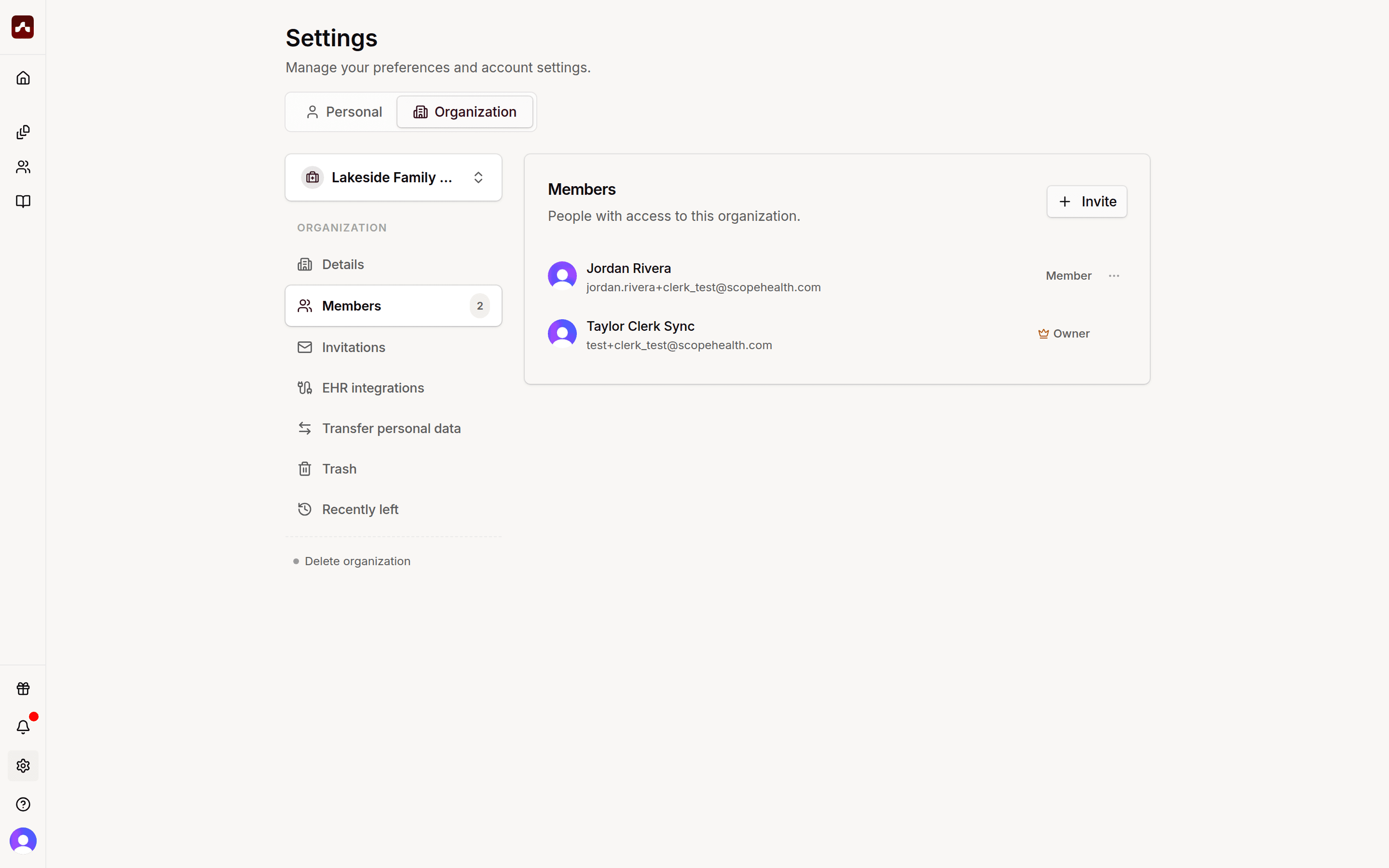 The Members list shows everyone with access and their roles
Admins can click the ⋯ menu next to a member to:
- Make admin / Make member — change their role
- Remove from organization — revoke their access
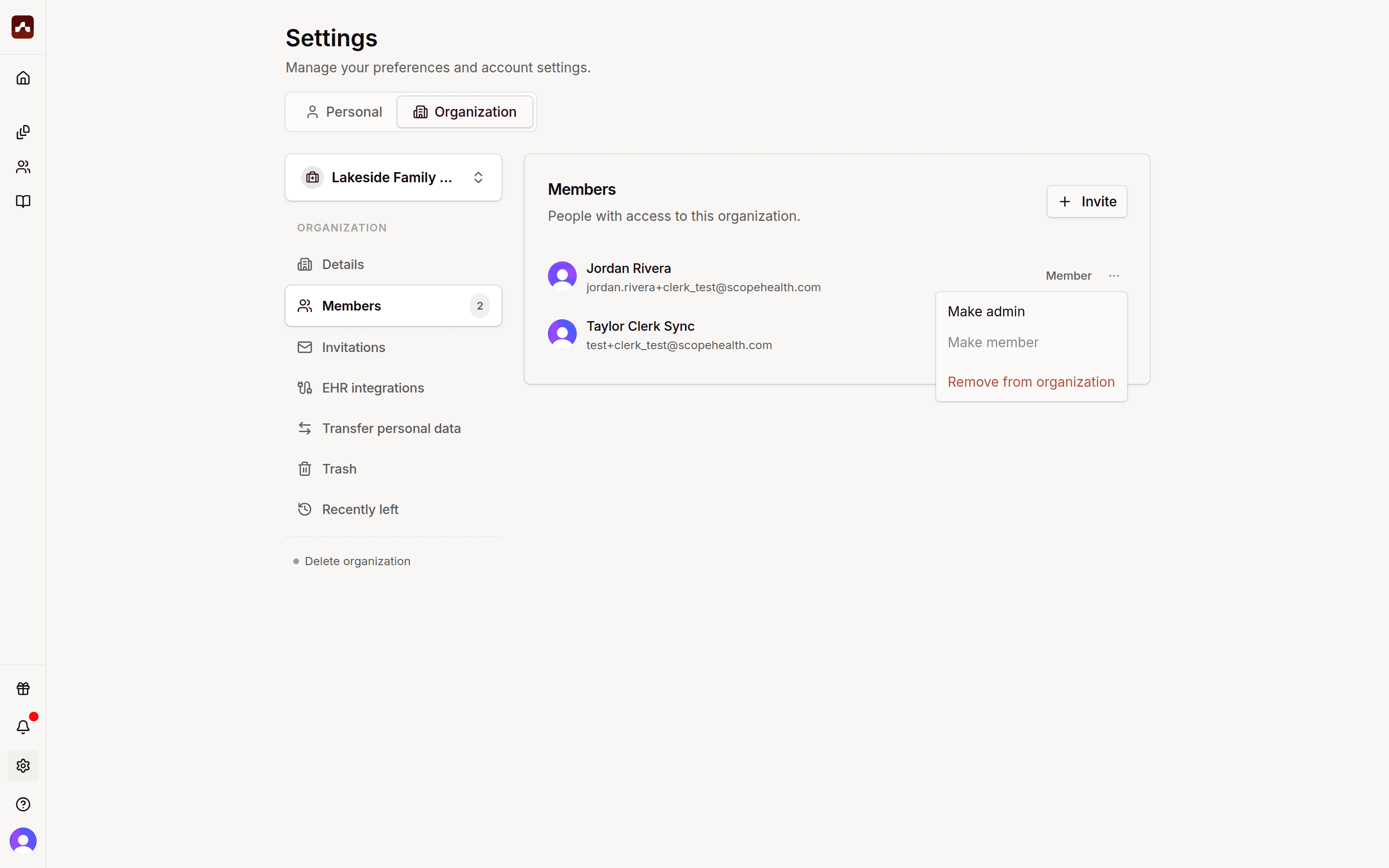 Admins can change roles or remove members from the ⋯ menu
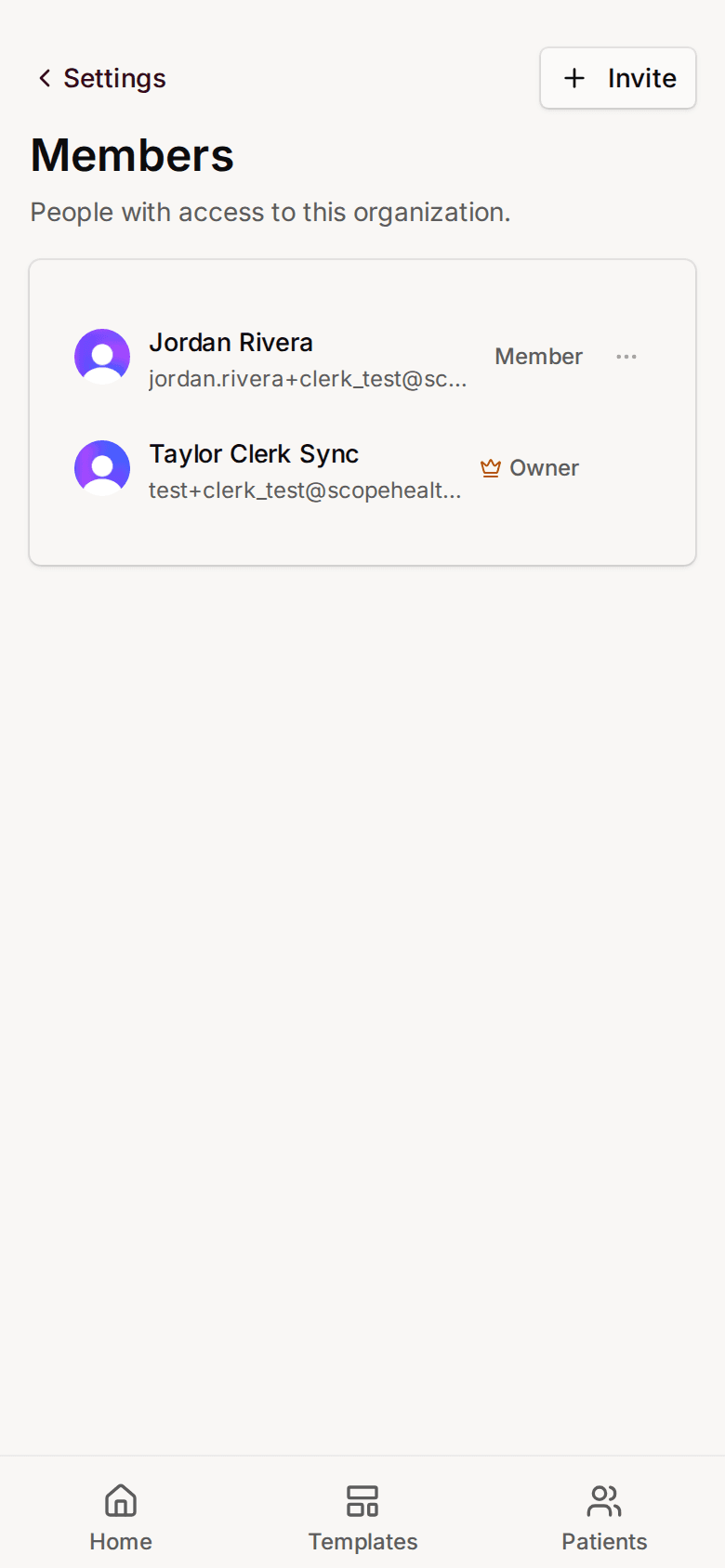 On mobile, the Members list works the same way
Editing Organization Details
Admins can update the organization's name and logo under Settings → Organization → Details.
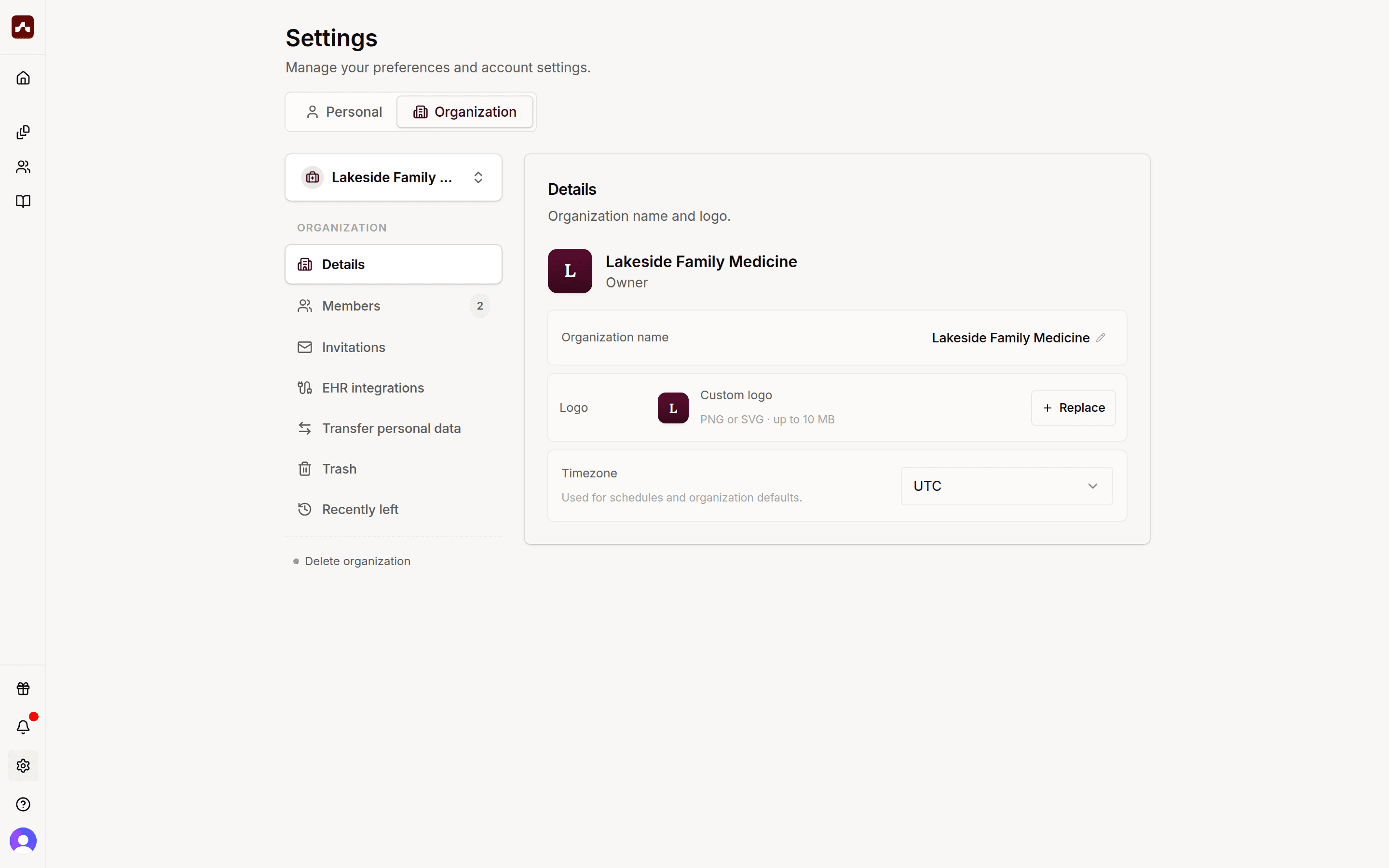 Edit your organization's name and logo from Details
When Someone Leaves
If a member is removed (or deletes their Scope account), their organization work isn't lost. Admins can reassign it from Settings → Organization → Recently left:
- Find the former member in the list
- Click Transfer content
- Choose an active member to receive their visits, patients, and templates
Each departed member's content can only be transferred once, and the transfer can't be undone.
There's currently no self-serve way to leave an organization — if you need to be removed, ask one of your organization's admins.
Deleting an Organization
Admins can permanently delete an organization from Settings → Organization (the Delete organization link). This removes access for all members and can't be undone, so Scope asks you to type DELETE ORGANIZATION to confirm.
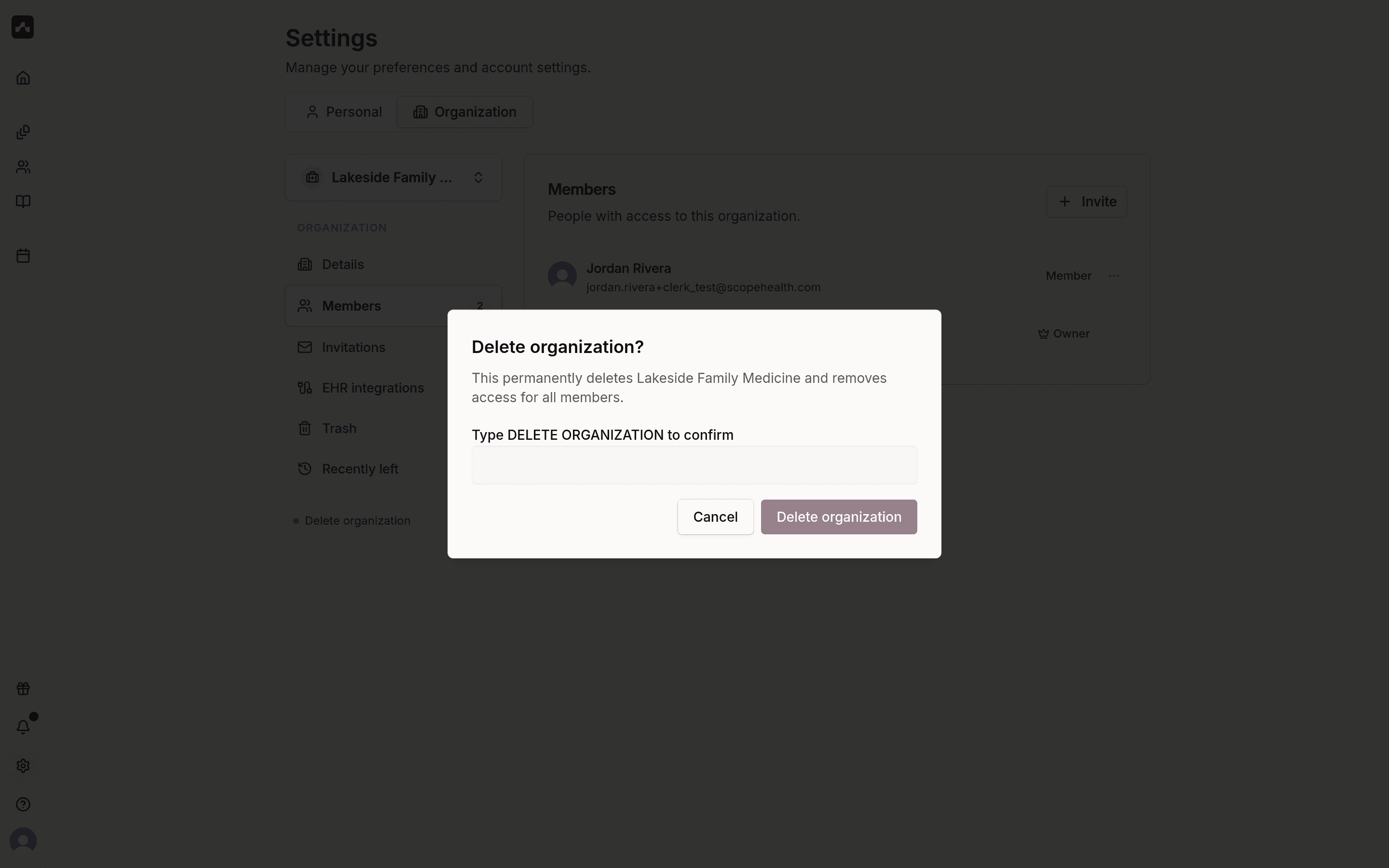 Deleting an organization requires a typed confirmation