Using Telehealth Sharing
Telehealth sharing lets Scope capture the patient audio directly from your browser tab, so both sides of the conversation are transcribed clearly during a virtual visit.
Before You Start
Telehealth sharing works best when all of the following are true:
- You are using Google Chrome or Microsoft Edge on desktop
- Your telehealth platform is open in a browser tab
- Google Meet and other platforms that run directly in your browser are supported in Chrome or Edge
- Zoom is supported only if you join using Zoom's "Join from your browser" link, instead of opening the Zoom desktop app
- Safari is not supported
- You are starting a new visit from Scope in a separate tab or window
This mode is especially helpful if you wear headphones, because Scope can still capture the patient's audio from the shared tab.
How to Start Telehealth Sharing
- Open your telehealth platform in a browser tab.
- In Scope, choose the template you want to use for the visit.
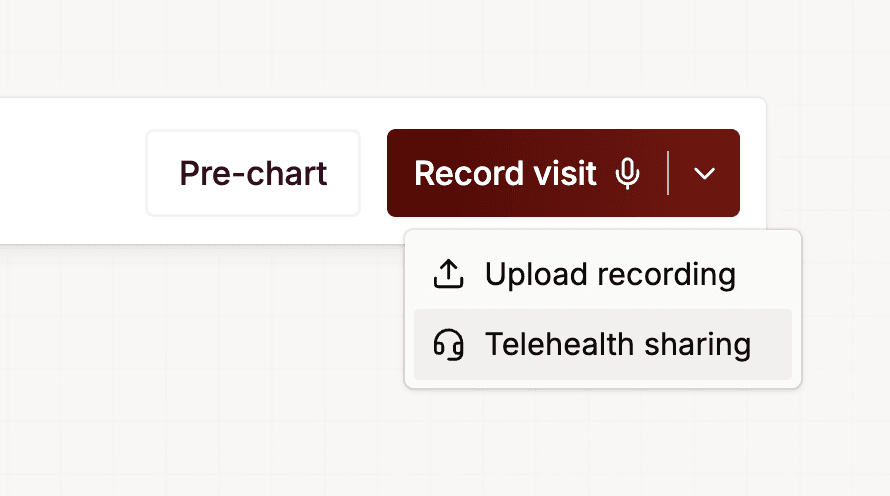
- Click the chevron next to Record visit.
- Select Telehealth sharing.
- When the browser sharing dialog appears, choose the tab running your telehealth call.
- Turn on Share tab audio.
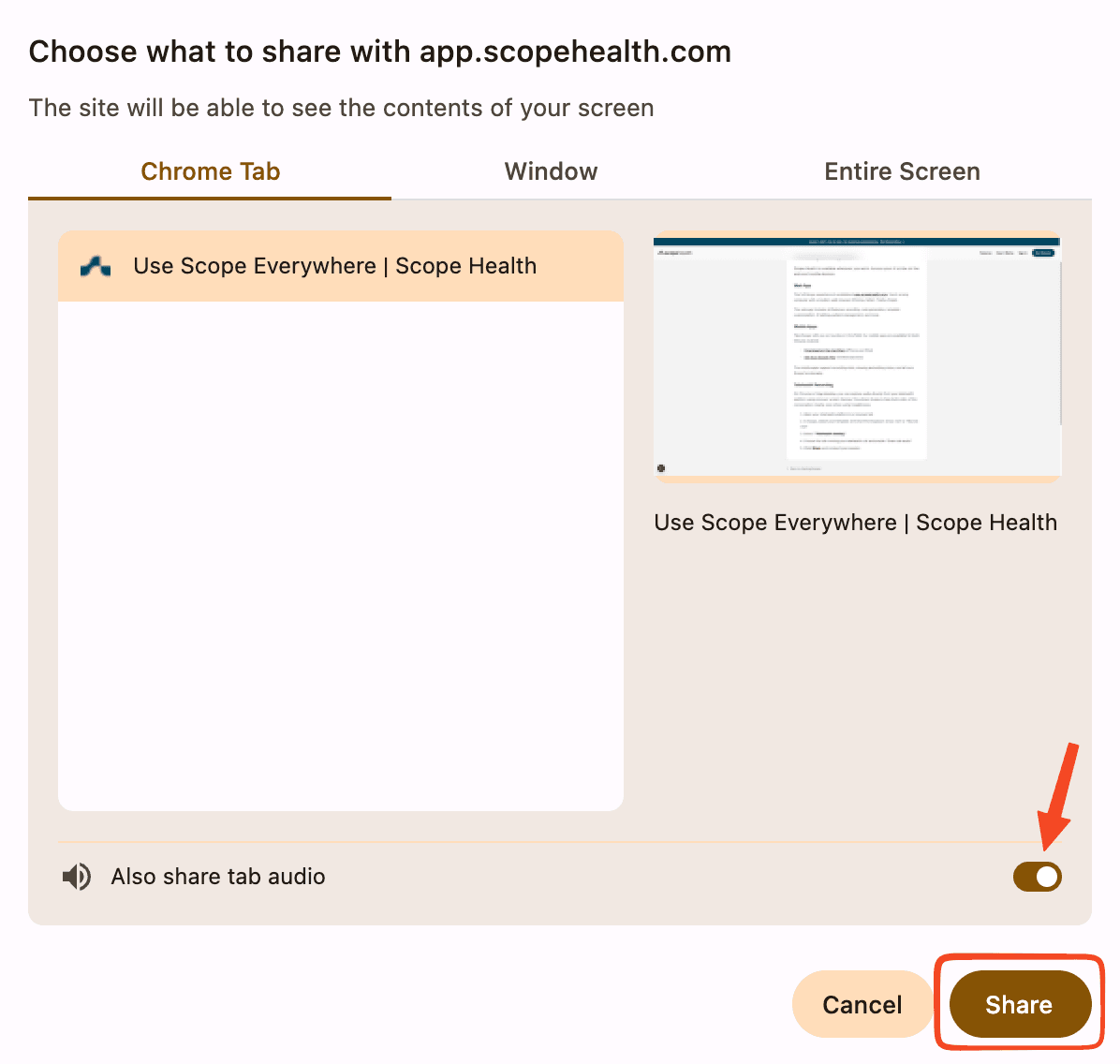
- Click Share to begin recording.
Once sharing starts, Scope will capture your microphone along with the audio from the telehealth tab. If you pick the wrong tab or leave tab audio turned off, Scope may only capture your side of the conversation.
Best Practices
- Keep the telehealth visit in a browser tab instead of a desktop app whenever possible
- Start sharing before the patient conversation begins so the full encounter is captured
- Use headphones if you prefer; tab audio sharing will still capture the patient's voice
- Speak naturally and verbalize key findings or plans you want reflected in the note
If Telehealth Sharing Isn't Working
If your platform or browser isn't supported, or tab sharing still isn't capturing the patient's voice, try one of these alternatives:
- Install the Scope mobile app and use it to record the visit from your phone
- See Use Scope Everywhere for download links
- Use speakers instead of headphones so Scope's microphone can pick up the patient's audio along with yours
- Record on a separate device (like a phone or tablet) placed near your speakers, then upload the recording to Scope afterward
Troubleshooting
Telehealth sharing is not available
- Make sure you are on desktop Chrome or Edge
- If you are in another browser, switch to Chrome or Edge and try again
You do not see the Share tab audio option
- Confirm that you selected a browser tab, not an entire window or screen
- Reopen the sharing dialog and choose the tab that contains the telehealth visit
Only your voice was captured
- Restart the visit and make sure Share tab audio is enabled
- Verify that the telehealth platform was running in the shared browser tab
You need another walkthrough
- Watch the Recording Telehealth Visits video tutorial for a quick visual example