Joining an Organization
Joining an organization starts with an email invitation from one of its admins. There's no way to search for or request to join an organization — if you'd like access, ask an admin at your practice to invite you.
Accepting Your Invitation
- Open the invitation email and click the link
- New to Scope? You'll be asked to create an account. Sign up with the same email address the invitation was sent to.
- Already have a Scope account? Sign in when prompted — if you're already signed in with the invited email, the invitation is accepted automatically.
 Scope accepts your invitation and opens your new organization
Once the invitation is accepted, Scope switches you into the organization workspace and shows a short welcome:
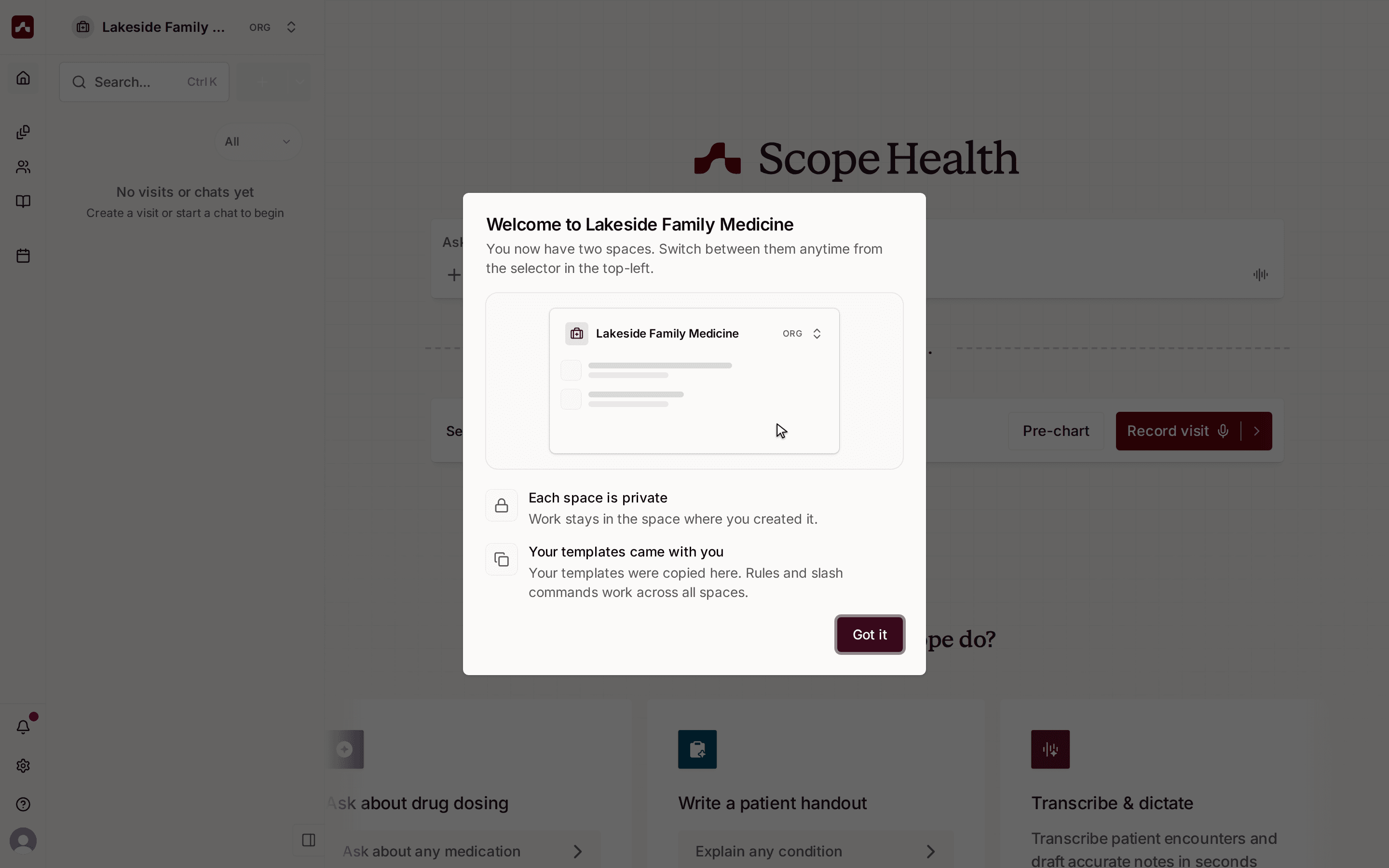 The welcome dialog after joining an organization
- Each space is private — your Personal workspace stays yours; organization work stays in the organization
- Your templates came with you — any templates from your personal library are copied into the organization so you can keep working the way you're used to
Where You Land
After joining, the organization becomes your active workspace. On desktop, the workspace switcher at the top of the sidebar shows the organization name. On mobile, the workspace chip on the Home screen shows it:
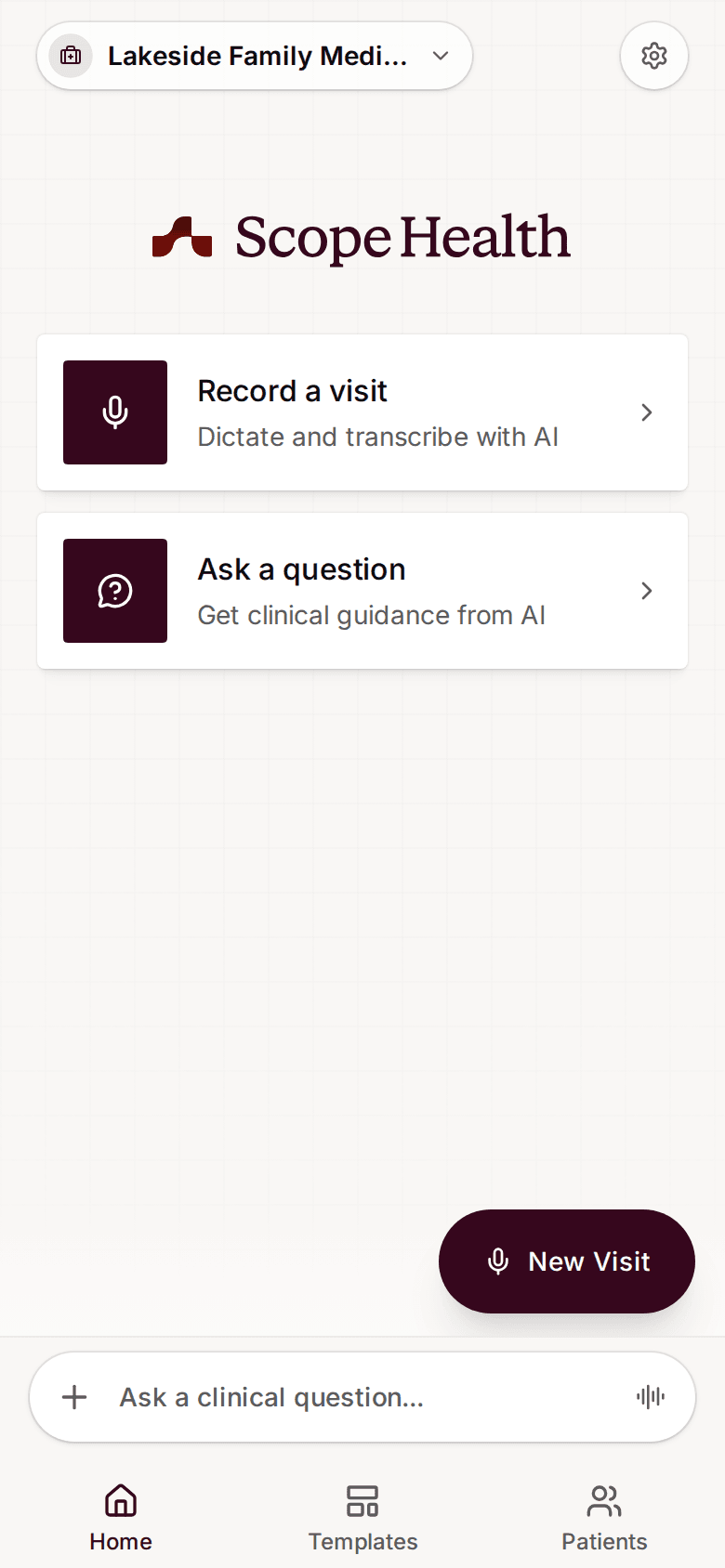 On mobile, the workspace chip shows your active organization
You can switch back to your Personal account at any time from the workspace switcher — everything in the app follows the workspace you're in.
Troubleshooting
- "You're signed in with a different account" — the invitation was sent to a different email address than the one you're signed in with. Click Sign out and continue, then sign up or sign in with the invited email.
- "Invitation link expired" — invitation links don't last forever. Ask your organization admin to send a new invitation.
- "Could not accept invitation" — make sure you're signed in with the exact email address the invitation was sent to. If it keeps happening, ask your admin to revoke the old invitation and send a fresh one.