Creating an Organization
Organizations give your practice a shared workspace in Scope. Once you create one, you can invite teammates, share templates, and keep your team's work in one place — separate from your personal account.
Team workspaces are rolling out gradually. If they aren't enabled for your account yet, choosing Create organization offers to add you to the waitlist instead — join it and we'll reach out as soon as your organization can invite teammates.
Personal vs. Organization Workspaces
Every Scope user starts with a Personal account workspace. When you create or join an organization, you get an additional workspace:
- Personal account — your private space. Visits, patients, templates, and chats here are visible only to you.
- Organization — a shared space for your practice. Work you create here stays in the organization.
You can belong to multiple organizations and switch between workspaces at any time.
How to Create an Organization (Desktop)
- Open Scope and click the workspace switcher at the top of the left sidebar (it shows "Personal account" or your current organization's name)
- Click Create organization
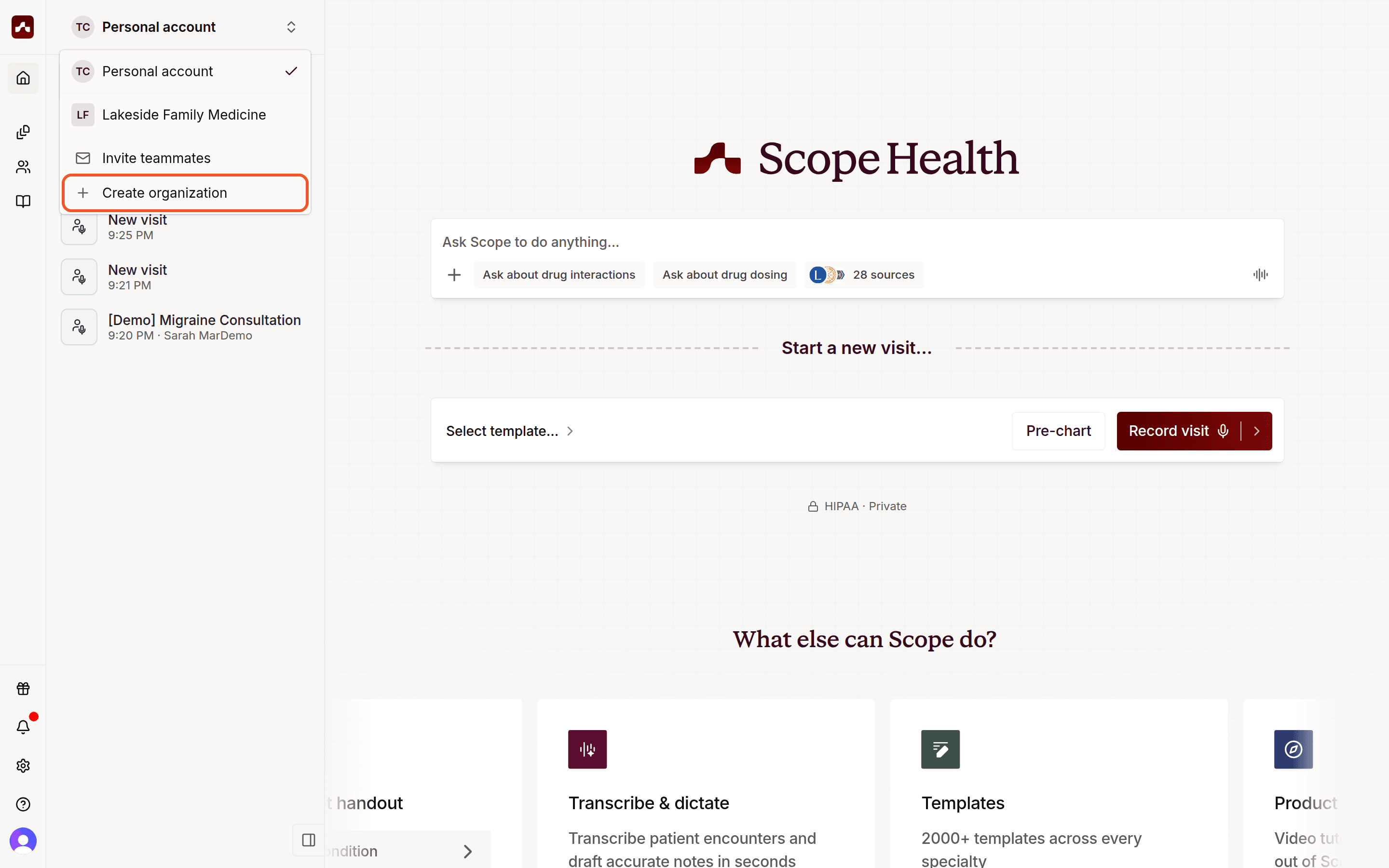 Open the workspace switcher in the top-left, then choose Create organization
- Enter a name for your organization (usually your practice name) and click Create organization
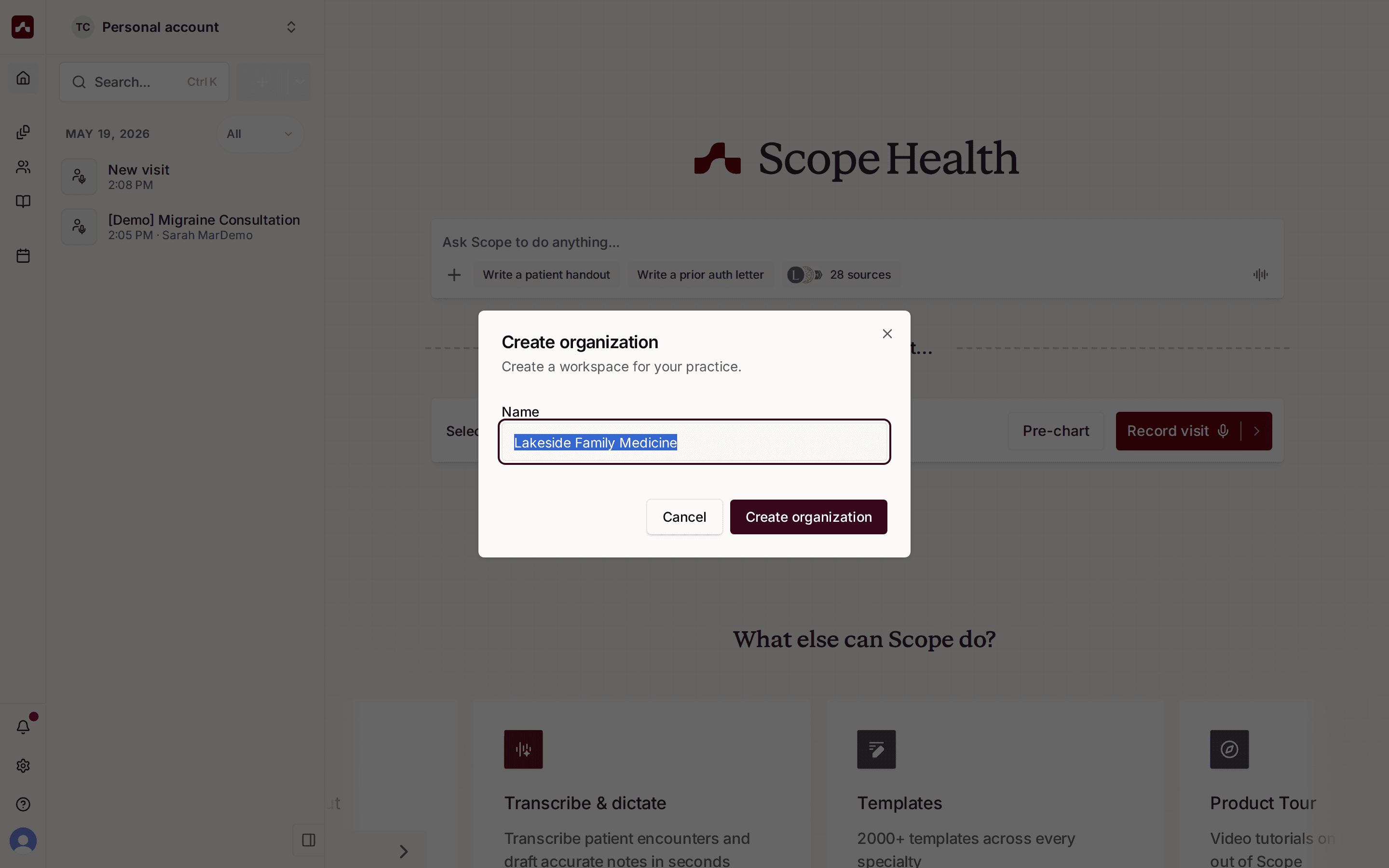 Name your organization after your practice
Scope creates the workspace and switches you into it automatically. This usually takes a few seconds.
How to Create an Organization (Mobile)
- On the Home screen, tap the workspace chip in the top-left corner
- In the Accounts sheet, tap Create organization
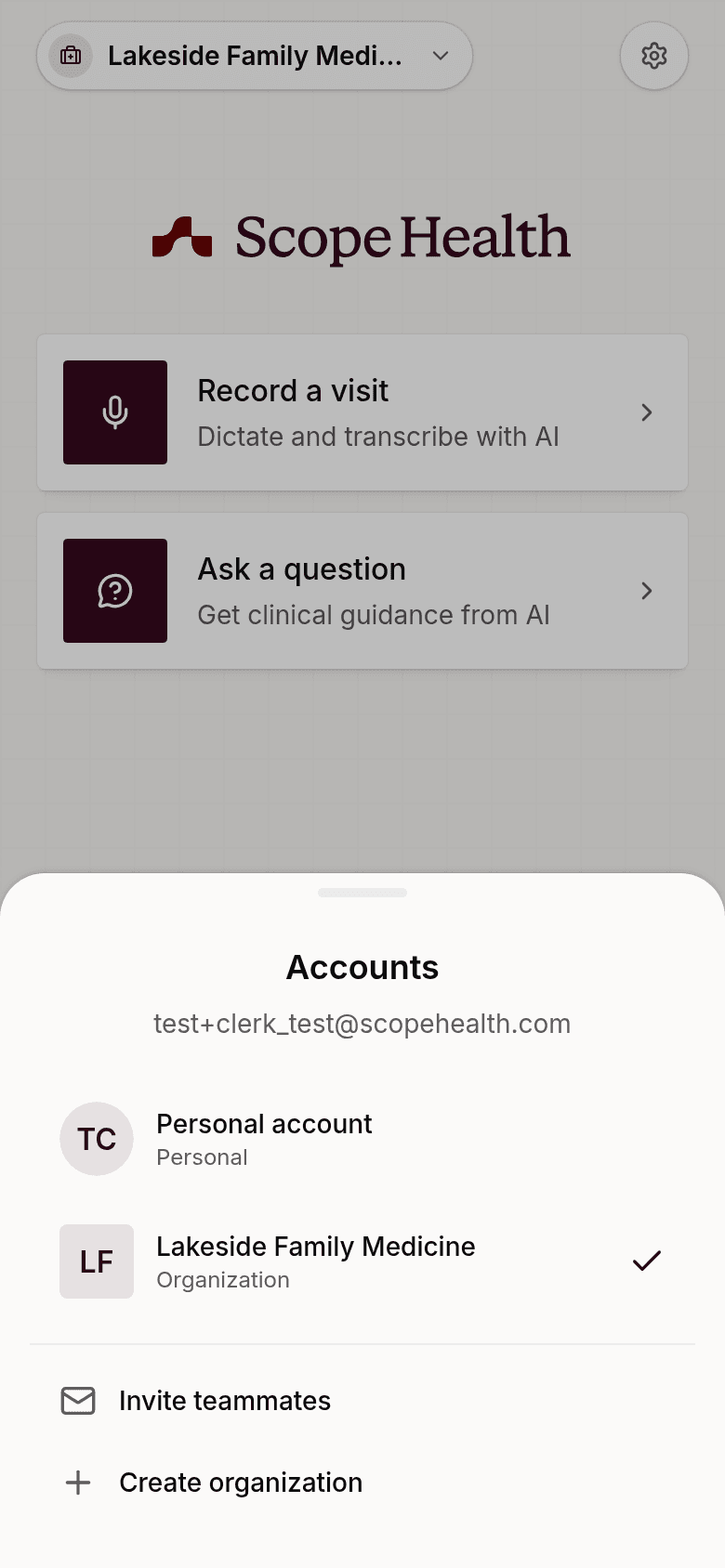 Tap the workspace chip to open the Accounts sheet
- Enter your practice name and tap Create organization
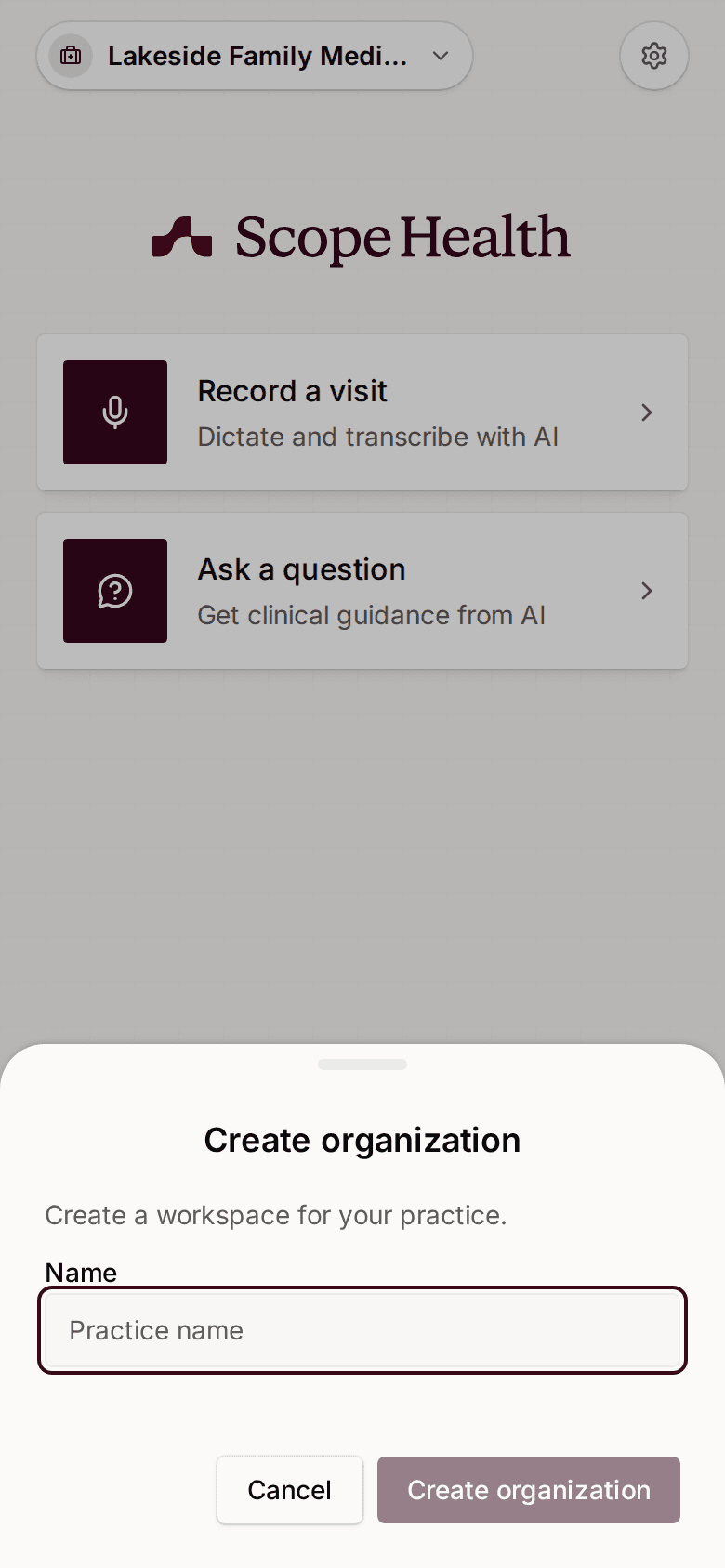 Create your organization from the bottom sheet on mobile
What Happens After You Create It
When your organization is ready, Scope shows a short welcome:
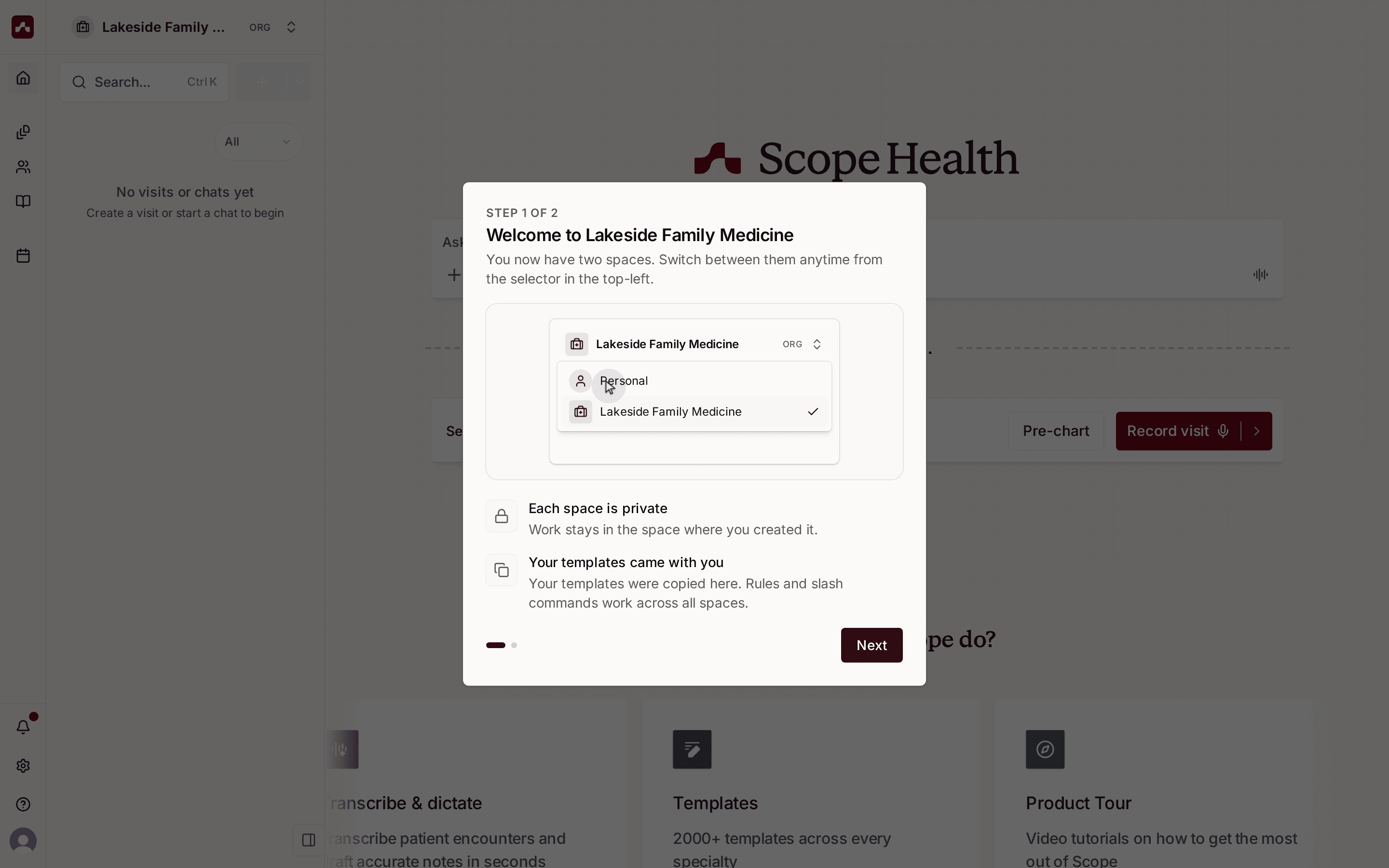 The welcome dialog explains your new organization workspace
- Each space is private — work stays in the space where you created it
- Your templates came with you — your personal templates are copied into the organization, and your rules and slash commands work across all spaces
If you have patients in your personal workspace, Scope also asks whether you want to bring them along:
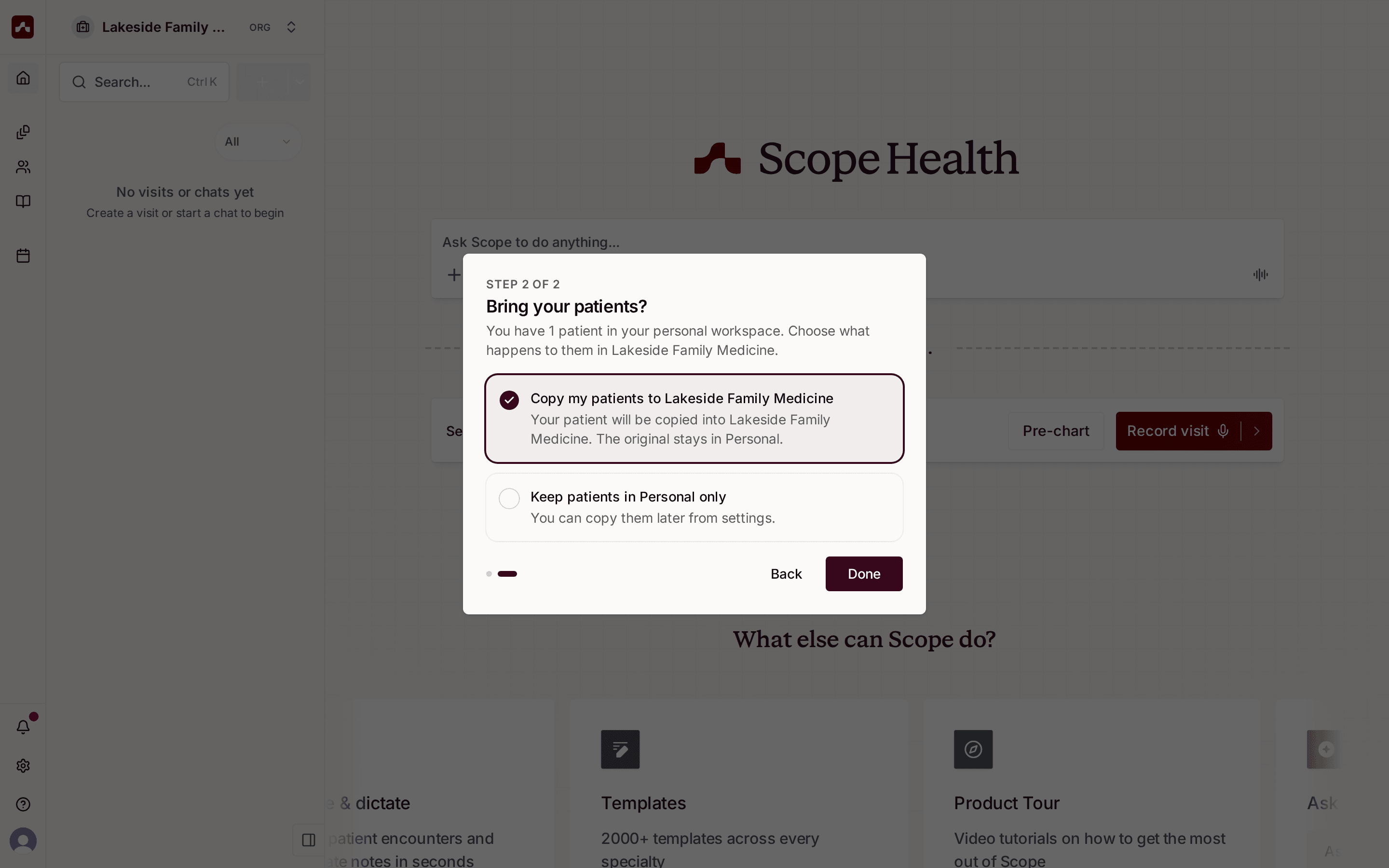 Choose whether to copy your patients into the new organization
- Copy my patients — your patients are copied into the organization; the originals stay in Personal
- Keep patients in Personal only — your patients stay in your personal workspace
Switching Between Workspaces
Use the workspace switcher (top of the sidebar on desktop, the workspace chip on mobile Home) to move between Personal and your organizations. Everything in the app — visits, patients, templates, and chats — reflects the workspace you're currently in.
Next Steps
- Invite your teammates to join your organization
- Share templates so everyone documents consistently